
Guide
Use your iPhone as a second display for your Mac.
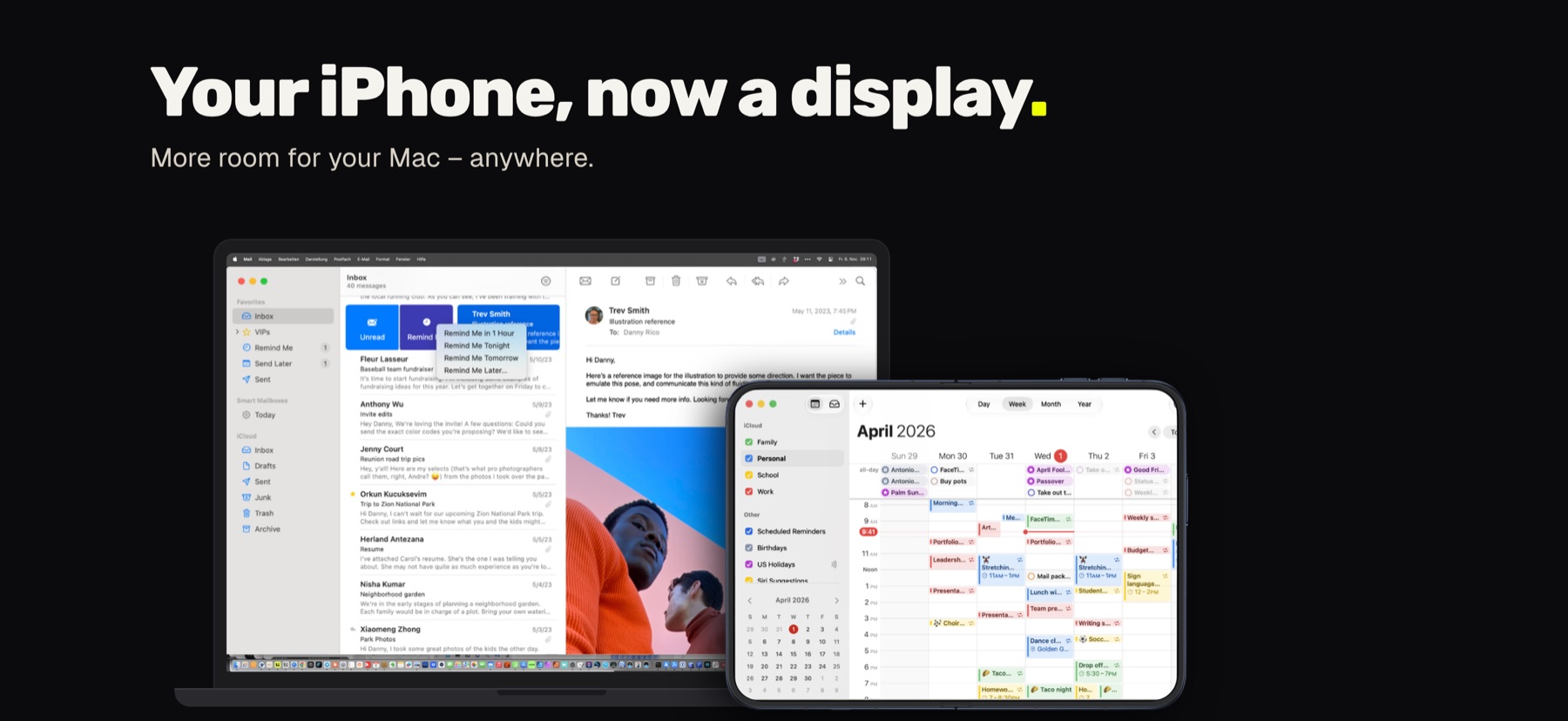
A MacBook screen is always too small on the go – and your iPhone is right next to it anyway. With the DuoScreen app it becomes a real extra display: macOS sees it like a connected monitor, and you just drag windows over.
Mac: macOS 14 or later · Apple silicon & Intel
iPhone: iOS 17 or later · Wi-Fi or cable
The short answer
Is that even possible?
Yes. Apple’s own Sidecar only works with an iPad, not with an iPhone. DuoScreen fills that gap: a small free Mac app creates an extra display and sends its picture straight to your iPhone. Nothing goes through the internet or a server.
At home, at work, on the go
Three routes – DuoScreen picks the best.
Over Wi-Fi
At home and at the office: iPhone and Mac on the same Wi-Fi, open the app, done.
By cable
On a train or in a hotel: just plug in the charging cable. Smoothest option, and your iPhone charges too.
Direct wireless
Neither Wi-Fi nor a cable? Mac and iPhone connect directly, and the mouse pointer travels over Bluetooth.
Nothing to set up: DuoScreen picks the best route on its own and switches when you plug or unplug the cable.
How it works
Set up in three steps.
Get the Mac app
Download the free “DuoScreen Mac” app from tslabs.dev/duoscreen and drag it into Applications. It is notarized by Apple.
Allow screen recording
On first launch macOS asks for “Screen & System Audio Recording”. Turn it on and restart the app.
Open the iPhone app
Open DuoScreen from the App Store. Your Mac finds the iPhone on its own, and the new display shows up in System Settings → Displays.
Ideas
What the iPhone screen is great for.
Keep Mail or chat in view while your main screen stays free for work
Calendar or to-do list next to your work
Tool palettes from design, photo or music apps
Notes, cheat sheets or a presentation preview
Questions
Common questions.
What do I need?
A Mac with macOS 14 Sonoma or later (Apple silicon or Intel) and an iPhone with iOS 17 or later.
Can I tap on the iPhone?
Not yet. You use the iPhone display like any other monitor, with your Mac’s mouse and keyboard.
Does it work without internet?
Yes. The picture goes straight from your Mac to your iPhone – over Wi-Fi, cable or direct wireless. It never leaves your devices.
Portrait or landscape?
Both. Rotate your iPhone and the display follows. macOS remembers the arrangement for each orientation.
How much is DuoScreen?
The iPhone app is a one-time purchase on the App Store, no subscription. The Mac app is free.
DuoScreen Mac.
Free · macOS 14 or later · Apple silicon & Intel